> For the complete documentation index, see [llms.txt](https://doc.some3c.com/llms.txt). Markdown versions of documentation pages are available by appending `.md` to page URLs; this page is available as [Markdown](https://doc.some3c.com/panda-manual/panda-setting-and-use.md).

# Panda Setting & Use

## 1.How to switch the interface to dark mode?

Place the mouse on the control panel icon and left-click to switch the theme of the entire Panda Android screen projection interface.

<figure><img src="https://1443965649-files.gitbook.io/~/files/v0/b/gitbook-x-prod.appspot.com/o/spaces%2Fnr7mODcx4OmqI75xOUOV%2Fuploads%2FOH3WEnWoSy7jEtQZNDKZ%2Fimage.png?alt=media&amp;token=e29b80fc-fa6d-495c-abb6-35094c8fc239" alt="box phone farm some3c.com"><figcaption><p>some3c.com</p></figcaption></figure>

## 2.How do I switch theme colors?

Click System Settings, find the theme color option in the settings pop-up window, and click the color block with your mouse to select the theme color.

<figure><img src="https://1443965649-files.gitbook.io/~/files/v0/b/gitbook-x-prod.appspot.com/o/spaces%2Fnr7mODcx4OmqI75xOUOV%2Fuploads%2FBe63sjikbmd3Be1Ws3WB%2Fimage.png?alt=media&amp;token=4b483e7e-c9fd-403c-9e27-c2f15039a43d" alt="box phone farm Accessories some3c.com"><figcaption><p>some3c.com</p></figcaption></figure>

## 3.How to fold and secure the control panel?

Put the mouse on the control panel and left-click to collapse the panel. If you want to fix the panel, move the mouse to the rightmost side of the software and the control panel will appear. At this time, click with the mouse to fix the control panel.

<figure><img src="https://1443965649-files.gitbook.io/~/files/v0/b/gitbook-x-prod.appspot.com/o/spaces%2Fnr7mODcx4OmqI75xOUOV%2Fuploads%2FOLrQ760YMc60Fc2nPDWB%2Fimage.png?alt=media&amp;token=c322ac21-f698-432a-9b0a-e8e69dcfbf5d" alt="box phone farm Accessories some3c.com"><figcaption><p>some3c.com</p></figcaption></figure>

## 4.How do I switch the control panel to the left?

Click System Settings. Find the Control Panel Position option in the Settings pop-up window and click Left or Right. The control panel will switch left and right.

<figure><img src="https://1443965649-files.gitbook.io/~/files/v0/b/gitbook-x-prod.appspot.com/o/spaces%2Fnr7mODcx4OmqI75xOUOV%2Fuploads%2FD9jG8hHJ0XoFrmFGl9ii%2Fimage.png?alt=media&amp;token=74118d58-4b1b-4679-aa0d-de5cbbd5badb" alt="box phone farm Accessories some3c.com"><figcaption><p>some3c.com</p></figcaption></figure>

## 5.How to control single and batch?

<table><thead><tr><th width="388">Individual control</th><th>Batch control</th></tr></thead><tbody><tr><td><p>Click the magnifying glass of the small window, or double-click a separate window to control it separately.<br></p><p><img src="https://1443965649-files.gitbook.io/~/files/v0/b/gitbook-x-prod.appspot.com/o/spaces%2Fnr7mODcx4OmqI75xOUOV%2Fuploads%2F0fzQUkEvn8PofvRcqM6n%2Fimage.png?alt=media&amp;token=dbcb3008-b359-4b12-9559-7db4874bfbd2" alt=""></p></td><td>Click the magnifying glass of the small winUse the mouse to select some or all of them, then double-click or click the magnifying glass in one of the windows to control the batch.<br><img src="https://1443965649-files.gitbook.io/~/files/v0/b/gitbook-x-prod.appspot.com/o/spaces%2Fnr7mODcx4OmqI75xOUOV%2Fuploads%2FvEAMiZ9Sh439O38ufVZc%2Fimage.png?alt=media&amp;token=3eafc891-dd2d-44f9-9036-7708c179b943" alt=""></td></tr></tbody></table>

## 6.How to hide the magnifying glass button on small screens

Click System Settings. Find the small screen magnifier option in the settings pop-up window. Click it to show or hide it.

<figure><img src="https://1443965649-files.gitbook.io/~/files/v0/b/gitbook-x-prod.appspot.com/o/spaces%2Fnr7mODcx4OmqI75xOUOV%2Fuploads%2FaXNsbeoFA41h17qKRxSs%2Fimage.png?alt=media&amp;token=8bad9907-833f-45ef-88bf-293154bbefbc" alt="box phone farm kits some3c.com"><figcaption><p>some3c.com</p></figcaption></figure>

## 7.How do I switch between automatic and manual scanning?

Click System Settings. Find the Network Scan Mode option in the Settings pop-up window. Click on Automatic Scan or Manual Scan with your mouse. After the change, you need to restart Panda for it to take effect.

{% hint style="info" %}
Mode Description:&#x20;

● Automatic scanning: When casting in OTG mode or WIFI mode, if you restart Panda, it will automatically cast in OTG, WIFI mode&#x20;

● Manual scanning: When casting in OTG mode or WIFI mode, if you restart Panda, you need to manually scan the IP to cast the screen
{% endhint %}

<figure><img src="https://1443965649-files.gitbook.io/~/files/v0/b/gitbook-x-prod.appspot.com/o/spaces%2Fnr7mODcx4OmqI75xOUOV%2Fuploads%2FUXpJIamS372pXflXfN5m%2Fimage.png?alt=media&amp;token=e9365da0-9c9e-436b-b081-48aec328fdd6" alt="box phone farm kits some3c.com"><figcaption><p>some3c.com</p></figcaption></figure>

## 8. What if I can't input?

1. Check whether the \[Cast Screen Keyboard] is installed and enabled normally. The operation demonstration is shown in the figure
2. If it is not installed, click \[Install Cast Screen Keyboard] first
3. After installation, click Switch to \[Cast Screen Keyboard] to type, paste and copy normally.

<figure><img src="https://1443965649-files.gitbook.io/~/files/v0/b/gitbook-x-prod.appspot.com/o/spaces%2Fnr7mODcx4OmqI75xOUOV%2Fuploads%2FGCCAI2H1K5WkeJxcyYXO%2Fimage.png?alt=media&amp;token=cbe66664-8831-4831-8da4-73969bd2c24a" alt="box phone farm kits some3c.com"><figcaption><p>some3c.com</p></figcaption></figure>

## 9.How to keep the screen of the mobile phone always on?

Move the mouse to the system settings and left-click, find the phone screen status option and click the Keep on button. After selecting, restart the client to take effect

<figure><img src="https://1443965649-files.gitbook.io/~/files/v0/b/gitbook-x-prod.appspot.com/o/spaces%2Fnr7mODcx4OmqI75xOUOV%2Fuploads%2FJYTvSFkcBgDoounVio4f%2Fimage.png?alt=media&amp;token=1c100dcd-ee96-49ba-9857-cbb5573a4319" alt="Build box phone farm some3c.com"><figcaption><p>some3c.com</p></figcaption></figure>

## 10.How to turn off the mirrored device?

Click on a device and turn off the Mirror option for that device from the list.

<figure><img src="https://1443965649-files.gitbook.io/~/files/v0/b/gitbook-x-prod.appspot.com/o/spaces%2Fnr7mODcx4OmqI75xOUOV%2Fuploads%2FjxlraC19EzQlvZ3Ox67o%2Fimage.png?alt=media&amp;token=11df71ac-e835-44ce-a82c-4c867d8644b6" alt="Build box phone farm some3c.com"><figcaption><p>some3c.com</p></figcaption></figure>

## 11.How to rotate the small screen

| Individual rotation                                                                                                                                                                                                                                       | Batch rotation                                                                                                                                                                                                                                            |
| --------------------------------------------------------------------------------------------------------------------------------------------------------------------------------------------------------------------------------------------------------- | --------------------------------------------------------------------------------------------------------------------------------------------------------------------------------------------------------------------------------------------------------- |
| <img src="https://1443965649-files.gitbook.io/~/files/v0/b/gitbook-x-prod.appspot.com/o/spaces%2Fnr7mODcx4OmqI75xOUOV%2Fuploads%2FpB4LaAUCrKiSNXpONRHO%2Fimage.png?alt=media&amp;token=b137d01b-5921-4d2d-bded-6b61edb04869" alt="" data-size="original"> | <img src="https://1443965649-files.gitbook.io/~/files/v0/b/gitbook-x-prod.appspot.com/o/spaces%2Fnr7mODcx4OmqI75xOUOV%2Fuploads%2FivqDYLeSlqB7NyeF1Dla%2Fimage.png?alt=media&amp;token=5f810adc-ab88-4a57-adbc-f78456b7ef82" alt="" data-size="original"> |

## 12.How to adjust the window size, image quality, and frame rate?

1. Drag the slider with the mouse to adjust the size, image quality, and frame rate of the small screen.
2. You can also use the shortcut key ctrl+mouse wheel to adjust the size of the small screen

<figure><img src="https://1443965649-files.gitbook.io/~/files/v0/b/gitbook-x-prod.appspot.com/o/spaces%2Fnr7mODcx4OmqI75xOUOV%2Fuploads%2FQt8sZOkT9c1zQ3ydBAdB%2Fimage.png?alt=media&amp;token=97c74f0f-1f9b-40f1-8cd4-32107a3ef51e" alt="DIY Phone Farm some3c.com"><figcaption><p>some3c.com</p></figcaption></figure>

{% hint style="info" %}

Note:

1. The higher the frame rate of the small screen, the higher the requirements for the computer and network. If you feel a delay when operating the mobile phone screen, please reduce the frame rate of the small screen to the minimum
2. If the image quality of the small screen is blurred, you can enlarge the size of the small screen
   {% endhint %}

## 13.How to record automated script tasks

Right - click on the phone window and select "Record Action." View the video guide.

Can execute custom script tasks. Executing tasks means you need to select a JS file or a bat file. The js file requires the installation of the screen projection assistant, but the bat file does not.

{% embed url="<https://youtu.be/XtnPYmd0D0Q>" %}

## 14.How to hide the operation sidebar

Double-click the window, click the dot, and click the Close option.

<figure><img src="https://1443965649-files.gitbook.io/~/files/v0/b/gitbook-x-prod.appspot.com/o/spaces%2Fnr7mODcx4OmqI75xOUOV%2Fuploads%2FqVGPPQvNjPaJ6Sc8cPEY%2Fimage.png?alt=media&amp;token=65c7292b-7ff7-4cde-b177-3d549359418f" alt="DIY Phone Farm some3c.com"><figcaption></figcaption></figure>

## 15.How to install APK to mobile phones in batches?

Press Ctrl+A to select all phones, then double-click a window and click Install APK. A window will pop up to select the APK you want to install, then click Install. Note:

* The speed of installing APK is related to the size of the APK file.

<figure><img src="https://1443965649-files.gitbook.io/~/files/v0/b/gitbook-x-prod.appspot.com/o/spaces%2Fnr7mODcx4OmqI75xOUOV%2Fuploads%2FWOZ3bG15kB11CyhRjJBL%2Fimage.png?alt=media&amp;token=fd0b3704-a227-4718-a642-e9db6ce38f62" alt="How to build phone farm some3c.com"><figcaption></figcaption></figure>

<figure><img src="https://1443965649-files.gitbook.io/~/files/v0/b/gitbook-x-prod.appspot.com/o/spaces%2Fnr7mODcx4OmqI75xOUOV%2Fuploads%2F0zz3Zgn0AnDTRkLkpXc3%2Fimage.png?alt=media&amp;token=02c0cdea-0c51-4849-8b98-f15520ce259f" alt="How to build phone farm some3c.com"><figcaption></figcaption></figure>

## 16.How to distribute text in batches?

Select the device to which you want to distribute the text.

<figure><img src="https://1443965649-files.gitbook.io/~/files/v0/b/gitbook-x-prod.appspot.com/o/spaces%2Fnr7mODcx4OmqI75xOUOV%2Fuploads%2FY5J9hThFGkVgfKBQ7AA6%2Fimage.png?alt=media&amp;token=fb1f2811-f33b-43b0-a940-c41df1245f2e" alt="How to build phone farm some3c.com"><figcaption></figcaption></figure>

Use separator "----" to customize fields such as "account email address, phone number, etc." Each line corresponds to one device.After setting, click the icon to enter.

<figure><img src="https://1443965649-files.gitbook.io/~/files/v0/b/gitbook-x-prod.appspot.com/o/spaces%2Fnr7mODcx4OmqI75xOUOV%2Fuploads%2F3P0uLyIBh5TtncUzKdYx%2FGIF%2024-10-17%207-30-23.gif?alt=media&amp;token=deebcaa6-a218-4ad3-b682-dd02f678b59a" alt="phone box farm some3c.com"><figcaption></figcaption></figure>

## 17.How to use shortcut phrases?

Double-tap the screen, select the shortcut phrase, and then select the phone to enter. Tap Enter.

<figure><img src="https://1443965649-files.gitbook.io/~/files/v0/b/gitbook-x-prod.appspot.com/o/spaces%2Fnr7mODcx4OmqI75xOUOV%2Fuploads%2Fcl6Fcm4ySXFB7TSPh3H2%2F%E5%BF%AB%E6%8D%B7.gif?alt=media&amp;token=729f66be-d47a-4e27-b208-2396570557d3" alt="phone box farm some3c.com"><figcaption></figcaption></figure>

## 18.How to achieve automatic screen sliding?

Select the phone that needs to slide automatically, right click, select Auto, then select the direction, number of cycles, and number of seconds between each slide. Click Start.

<figure><img src="https://1443965649-files.gitbook.io/~/files/v0/b/gitbook-x-prod.appspot.com/o/spaces%2Fnr7mODcx4OmqI75xOUOV%2Fuploads%2FIRKOKDorJiDIdgOsfNAy%2F%E8%87%AA%E5%8A%A8%E5%8C%96.gif?alt=media&amp;token=61131201-6b0b-49a8-b63e-0e2d995b8324" alt="phone farm some3c.com"><figcaption></figcaption></figure>

## 19.How to Use ADB Command Console

Select a single phone, or select some phones, right-click, click ADB. Then select the command

<figure><img src="https://1443965649-files.gitbook.io/~/files/v0/b/gitbook-x-prod.appspot.com/o/spaces%2Fnr7mODcx4OmqI75xOUOV%2Fuploads%2Fm3uyRl9XE1T5qSTaKpjd%2FGIF%2025-8-19%2016-42-59.gif?alt=media&amp;token=860b15d0-d1aa-48ab-8f08-12e8f2cfcbdd" alt="phone farm some3c.com"><figcaption></figcaption></figure>

## &#x20;20.How to use delayed synchronization?

1. Click on the panel's more functions, then click on delayed synchronization
2. You can set the minimum time to 1 second and the maximum time to 3600 seconds, and select the operation option that needs to be delayed
3. After setting, close the pop-up window, and the operation of the mobile phone will be delayed according to the sequence number.

<figure><img src="https://1443965649-files.gitbook.io/~/files/v0/b/gitbook-x-prod.appspot.com/o/spaces%2Fnr7mODcx4OmqI75xOUOV%2Fuploads%2F3f9Kwuzd94bt2kkv6QCC%2Fimage.png?alt=media&amp;token=8db8cc19-aabb-42f0-aa13-5252b159ee34" alt="phone farm Accessories some3c.com"><figcaption></figcaption></figure>

## 21.How to modify phone parameters?

1. Click on the panel more functions, then click on the phone parameter option
2. The resolution option allows you to enter the phone resolution value, the DPI option allows you to enter the DPI value, and the battery option allows you to enter a value from 1-00
3. After entering the relevant values, click Confirm to modify the phone and it will take effect immediately, but the resolution and DPI displayed in the "Device List" need to restart the client to refresh.
4. The Restore Phone Default button can restore the selected device resolution and DPI to the default value of the phone, ignoring the battery

<figure><img src="https://1443965649-files.gitbook.io/~/files/v0/b/gitbook-x-prod.appspot.com/o/spaces%2Fnr7mODcx4OmqI75xOUOV%2Fuploads%2Fkgi2HiqsLKamzk1mr3HG%2Fimage.png?alt=media&amp;token=0bf929d1-83da-48b9-831b-baad3595941b" alt="phone farm Accessories some3c.com"><figcaption></figcaption></figure>

## 22.How to extract APK?

1. Double-click a single window. In the application list on the right control bar, place the mouse on the APP application icon that needs to extract the APK and a pop-up window will pop up. Find the Extract APK button on the pop-up window, click and confirm
2. The APK is being extracted. The larger the APK, the slower the extraction. Please wait patiently
3. After the extraction is successful, click the Open Directory button to see the extracted APK file

<figure><img src="https://1443965649-files.gitbook.io/~/files/v0/b/gitbook-x-prod.appspot.com/o/spaces%2Fnr7mODcx4OmqI75xOUOV%2Fuploads%2Fpdebp8TawnO0Dmi19bdk%2Fimage.png?alt=media&amp;token=7233c04c-2bc3-43c7-bf9d-852aa74c9f8b" alt="phone farm box some3c.com"><figcaption></figcaption></figure>

## 23.How to turn on or off small screen control via shortcut keys?

1. Use the panel switch to turn on or off the small screen control
2. Click the shortcut bar icon and click the shortcut bar description to find the small screen control shortcut key option. When turned on or off by default, press ctrl+s. You can customize the shortcut key

<figure><img src="https://1443965649-files.gitbook.io/~/files/v0/b/gitbook-x-prod.appspot.com/o/spaces%2Fnr7mODcx4OmqI75xOUOV%2Fuploads%2FE6Oi3VMVB3Jhe7Z8le8w%2Fimage.png?alt=media&amp;token=0cdfadd9-a5a7-48b7-8be5-001262e4b949" alt="phone farm box some3c.com"><figcaption></figcaption></figure>

## 24.Merge adb authorization files

{% embed url="<https://youtu.be/nkx3vXB9vKk>" %}

1.In the "More" pop-up window, find "Merge Authorization Options" and click

<figure><img src="https://1443965649-files.gitbook.io/~/files/v0/b/gitbook-x-prod.appspot.com/o/spaces%2Fnr7mODcx4OmqI75xOUOV%2Fuploads%2FVAKzOFAmPnxnaFvoyIdP%2Fimage.png?alt=media&amp;token=4dca90e3-d9f2-4acc-8447-f5fbdb790ff7" alt="phone farm box Accessories some3c.com"><figcaption></figcaption></figure>

2.In the first step, select the new authorization files "adbkey" and "adbkey.pub", click OK, and <mark style="color:red;">**do not select the two authorization files under "C:\Users\Administrator\\.android".**</mark>

<figure><img src="https://1443965649-files.gitbook.io/~/files/v0/b/gitbook-x-prod.appspot.com/o/spaces%2Fnr7mODcx4OmqI75xOUOV%2Fuploads%2F9yVcvZOUx39Ut2xrSye6%2Fimage.png?alt=media&amp;token=db5bffeb-469f-4100-bc35-75c467500dba" alt="phone farm box Accessories some3c.com"><figcaption></figcaption></figure>

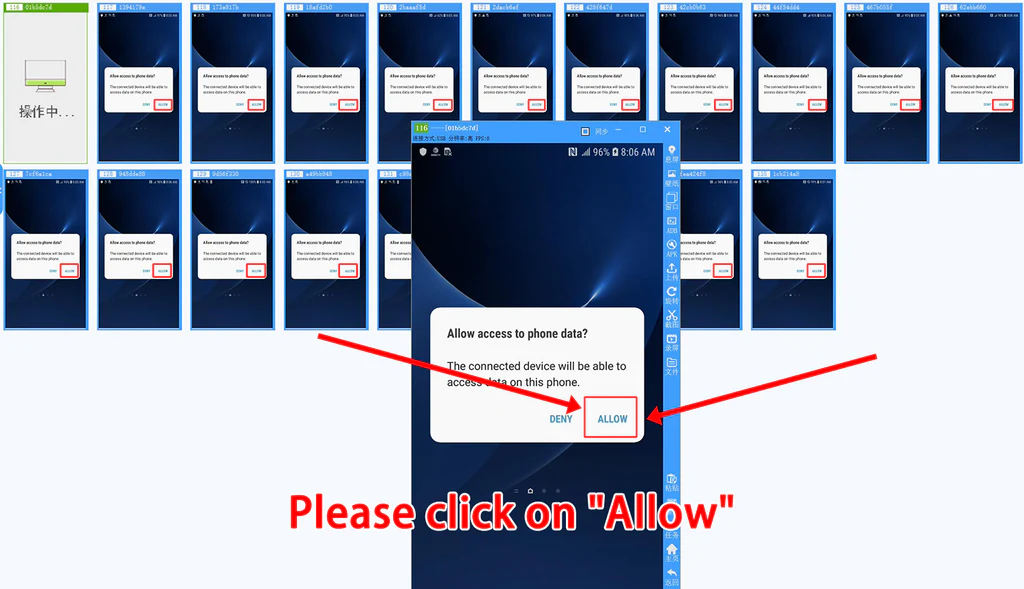
3.Then connect the unauthorized chassis to the computer. Panda will help you merge the authorization files. After the merger is completed, it will automatically go to the third step.

4.The fourth step requires you to manually click the authorization box of the mobile phone window in Panda Screen Mirror, click "Allow" in all mobile phone windows, and then click the "<mark style="color:blue;">I have authorized all</mark>" button. program will complete the final merge, just click Finish.

<figure><img src="https://1443965649-files.gitbook.io/~/files/v0/b/gitbook-x-prod.appspot.com/o/spaces%2Fnr7mODcx4OmqI75xOUOV%2Fuploads%2FprQDNgT9RbFkt9IQ31q2%2Fimage.png?alt=media&amp;token=b2ddea39-0df6-45c6-8b3e-391b0de1cdc9" alt="phone farm chassis some3c.com"><figcaption></figcaption></figure>

<figure><img src="https://1443965649-files.gitbook.io/~/files/v0/b/gitbook-x-prod.appspot.com/o/spaces%2Fnr7mODcx4OmqI75xOUOV%2Fuploads%2FB2AFsGJRgnEtSEMtvjIs%2Fimage.png?alt=media&amp;token=3e42b466-238e-4e20-a710-ee8f4b566aa0" alt="Panda Free Android Screen Mirroring Display &#x26; control Android on PC | some 3C "><figcaption></figcaption></figure>

{% hint style="success" %}
**We will back up the previous authorization files for you to the backup folder under the Panda installation directory.**
{% endhint %}

## 25.How to chang mobile phone number or mobile phone name

Right click the window you want to change, then click the number or name to modify

<figure><img src="https://1443965649-files.gitbook.io/~/files/v0/b/gitbook-x-prod.appspot.com/o/spaces%2Fnr7mODcx4OmqI75xOUOV%2Fuploads%2F9lSsq4793D9fAvXb2Rw9%2FGIF%2025-8-19%2016-46-01.gif?alt=media&amp;token=c27e8654-d231-443f-9227-06dcd2b11ce7" alt="Panda Free Android Screen Mirroring Display &#x26; control Android on PC | some 3C "><figcaption></figcaption></figure>

## 26.How do I use the 【Mobile Sharing】 function?

**1.Function Introduction**\
When you need to temporarily transfer the use of your locally connected Android device to someone else, you can initiate device sharing through this feature. The system will establish a connection by generating a unique "sharing code," and the recipient can take full control of the device after entering the code. To ensure device security and business compliance, the sharing party has the highest management privileges and can check the status or forcibly revoke control of the device at any time through "Manage Sharing."\
**⚠️Important Note:**\
Login restrictions:Both the sharer and the receiverYou must log in to your accountThis function can only be used when logged in; the relevant entry will be unavailable if you are not logged in.\
Mutual exclusion logic:Once the device is in "sharing" mode, the sharing party should avoid operating the phone locally to prevent command conflicts with the recipient. Control will only automatically revert to the sharing party when the sharing party actively stops sharing or the sharing expires.\
**2.Which version supports device sharing?**\
You can initiate sharing, acquire devices, and manage services independently via the PC client. Supported client versions:\
Panda Android Screen Mirroring v9.12.213 and above\
**3.Step 1: Initiate device sharing (sharing party)**\
Whether you wish to lend out a single device or multiple devices, you can find the sharing option through the following methods:\
**3.1 Access via right-click menu**\
Applicable scenarios:When one or more connected local mobile phones are selected on the main interface.\
Operating instructions:mouseRight-clickSelect the device card (or right-click after selecting multiple devices), and choose from the context menu that appears."Shared devices".

<figure><img src="https://1443965649-files.gitbook.io/~/files/v0/b/gitbook-x-prod.appspot.com/o/spaces%2Fnr7mODcx4OmqI75xOUOV%2Fuploads%2FaniIdcZvIPHlgL0ZGd0Q%2FQQ%E6%88%AA%E5%9B%BE20260826185955.jpg?alt=media&amp;token=55175676-aef1-40ce-8583-b743260e3aec" alt="Panda Free Android Screen Mirroring Display &#x26; control Android on PC | some 3C "><figcaption></figcaption></figure>

**3.2 Setting the expiration date and generating a sharing code**\
Operating instructions:Clicking will bring up a time selection drawer; please select "Share".Deadline/Time.\
Tag Management:After confirming the time, a 9-digit sharing code will be generated in a pop-up window. You can directly copy the sharing code; the system will automatically generate a default tag, or you can edit the tag for better recognition. Click "OK" to close the pop-up window.

<figure><img src="https://1443965649-files.gitbook.io/~/files/v0/b/gitbook-x-prod.appspot.com/o/spaces%2Fnr7mODcx4OmqI75xOUOV%2Fuploads%2FbEHzPgMzFEdTeOr0Rixf%2FQQ%E6%88%AA%E5%9B%BE20260826190155.jpg?alt=media&amp;token=26587125-72fd-4d4c-bebd-62040561cf71" alt="Panda Free Android Screen Mirroring Display &#x26; control Android on PC | some 3C "><figcaption></figcaption></figure>

**3.3 Changes in Machine Status**\
Results feedback:After successful sharing, the device card interface will change: a green indicator will appear in the upper left corner.Share iconThe middle area is displayedShare codeandExpiry dateThe bottom status bar displays "Screen casting is normal".

<figure><img src="https://1443965649-files.gitbook.io/~/files/v0/b/gitbook-x-prod.appspot.com/o/spaces%2Fnr7mODcx4OmqI75xOUOV%2Fuploads%2FkJqzfK8rxpYrFTKR3qaf%2FQQ%E6%88%AA%E5%9B%BE20260826190244.jpg?alt=media&amp;token=3a21d28d-3311-4e50-aeaf-d1082dee9b63" alt="Panda Free Android Screen Mirroring Display &#x26; control Android on PC | some 3C "><figcaption></figcaption></figure>

**4.Step 2: Obtaining and using the equipment (the acquiring party)**\
4.1 Accessing the Entry Point\
Operating instructions:After logging into the client, the recipient clicks on the top menu bar.More features-> Select"Get Share".

<figure><img src="https://1443965649-files.gitbook.io/~/files/v0/b/gitbook-x-prod.appspot.com/o/spaces%2Fnr7mODcx4OmqI75xOUOV%2Fuploads%2F1jvmWUYC88CoGeeBRXvr%2Fimage.png?alt=media&amp;token=a5da3914-1c24-4f26-8750-40713bd811f6" alt="Panda Free Android Screen Mirroring Display &#x26; control Android on PC | some 3C "><figcaption></figcaption></figure>

**4.2 Enter the sharing code**\
Operating instructions:In the pop-up "Get Sharing Device" window, enter the 9-digit sharing code provided by the sharing provider, and click on the right.“Identification”Button.

<figure><img src="https://1443965649-files.gitbook.io/~/files/v0/b/gitbook-x-prod.appspot.com/o/spaces%2Fnr7mODcx4OmqI75xOUOV%2Fuploads%2Fy4lGVBs2rb3NRxKEh2Ou%2Fimage.png?alt=media&amp;token=d09f4746-014c-4015-a04c-5a73a18a402f" alt="Panda Free Android Screen Mirroring Display &#x26; control Android on PC | some 3C "><figcaption></figcaption></figure>

**4.3 Confirm Acquisition**\
Operating instructions:After successful system recognition, a device information preview will be loaded. Click"Confirm Acquisition"Click the button, and the system will display "Retrieval successful".\
**4.4 Getting Started**\
Results feedback:After a short wait, the sharing device will appear in the device list. The card will display the word "Share" and the specific expiration time. Double-click to connect and control it.

<figure><img src="https://1443965649-files.gitbook.io/~/files/v0/b/gitbook-x-prod.appspot.com/o/spaces%2Fnr7mODcx4OmqI75xOUOV%2Fuploads%2Fg5BeYl6UiyhD9GZQ369U%2Fimage.png?alt=media&amp;token=fc02bc5f-af76-4a1a-8298-fdc0c62bf213" alt="Panda Free Android Screen Mirroring Display &#x26; control Android on PC | some 3C "><figcaption></figcaption></figure>

**5.Step 3: Managing and Stopping Sharing (by the Sharing Party)**\
**5.1 Check sharing status**\
Operating instructions:The sharer clicks the top menu bar.More features-> Select"Management Sharing".\
Interface description:On the management page, you can quickly filter devices and view the current sharing status using the three tabs: "All," "Sharing," and "Expired."

<figure><img src="https://1443965649-files.gitbook.io/~/files/v0/b/gitbook-x-prod.appspot.com/o/spaces%2Fnr7mODcx4OmqI75xOUOV%2Fuploads%2F0BSSAZTnWuevXZIyL86o%2FQQ%E6%88%AA%E5%9B%BE20260826191750.jpg?alt=media&amp;token=55c2bf35-57b3-4de8-80c1-008f8b5616ee" alt="Panda Free Android Screen Mirroring Display &#x26; control Android on PC | some 3C "><figcaption></figcaption></figure>

**5.2 Stop sharing (revoke permissions)**\
Applicable scenarios:When it is necessary to terminate the equipment loan early, or when an anomaly is discovered and control needs to be regained immediately.\
Operating instructions:\
In the "Manage Shares" list or device list, find the device that is being shared.\
Click on the device cardStop sharingButton (or right-click menu to select Stop).

In the pop-up confirmation box, select the stop range (single unit or batch), and click.Confirm to stop sharing.

<figure><img src="https://1443965649-files.gitbook.io/~/files/v0/b/gitbook-x-prod.appspot.com/o/spaces%2Fnr7mODcx4OmqI75xOUOV%2Fuploads%2FUU2eOsVTjM5ryDGBnUHW%2FQQ%E6%88%AA%E5%9B%BE20260826190430.jpg?alt=media&amp;token=eb748b5f-81c5-4504-8432-14e699fa8ffa" alt="Panda Free Android Screen Mirroring Display &#x26; control Android on PC | some 3C "><figcaption></figcaption></figure>